

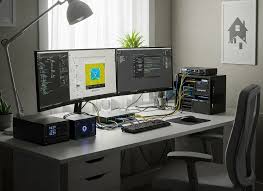
Building your own homelab has become a gateway to mastering skills, experimenting with new technologies, and creating a personal environment for innovation. Whether you’re testing software, running multiple operating systems, or hosting your own services, virtualisation is at the heart of a flexible and efficient homelab setup.
With so many virtualisation solutions available, choosing the right one can feel overwhelming. Do you prioritise performance, ease of use, or compatibility with your existing hardware? Each option offers unique advantages, and understanding what fits your needs is key to getting the most out of your setup. By exploring the best virtualisation tools, you’ll gain the insight needed to make an informed decision and take your homelab to the next level.
What Is Homelab Virtualisation?
If you’ve been thinking about what the best hypervisor for home lab might be, it’s worth knowing a few things first. Virtualisation refers to creating and managing virtual environments within your own hardware to simulate multiple systems. It provides the capability to run several operating systems or applications simultaneously on a single physical machine, unlocking greater efficiency for your setups. Many virtualisation platforms act as the backbone for these environments, enabling software-defined computing.
Your homelab benefits significantly from virtualisation in several ways. Instead of using multiple physical servers, you can consolidate workloads into one device. For example, instead of investing in three servers to host a media server, VPN, and development environment, you can allocate resources within a single virtualised server to achieve this. This reduces hardware costs and power consumption.
Virtualisation offers versatility for tasks. You will find that you can test configurations, deploy isolated environments, and even experiment with different operating systems without disrupting existing setups. In the case that you want to explore Linux distributions, such as Ubuntu or CentOS, virtual machines give you the flexibility to switch between them with ease. Snapshot and cloning features further streamline the process by enabling quick recovery from errors.
Network virtualisation plays a key role too. You might find yourself simulating complex networks, creating VLANs, or working with virtual switches. This level of control is crucial for testing scenarios, especially if your interest leans towards learning network engineering or cybersecurity fundamentals.
Your choice of virtualisation software determines the performance and capabilities of your homelab. Solutions like VMware Workstation, Proxmox VE, and VirtualBox cater to varying needs. Some tools are lightweight and user-friendly, while others offer advanced features such as GPU passthrough and high availability. Hardware compatibility often shapes these decisions, so researching supported processors and memory configurations is necessary.
Homelab virtualisation empowers creative experimentation. By managing virtual environments, you leverage your hardware’s full potential and maintain flexibility in exploring technology.
Popular Homelab Virtualisation Options
Explore virtualisation tools that suit your homelab needs. Each option offers unique features, compatibility, and levels of customisation.
VirtualBox
VirtualBox provides a flexible, open-source virtualisation solution. It’s free, available for Windows, macOS, and Linux hosts, and supports various guest operating systems like Linux distributions and older versions of Windows. You may find its robust snapshot system useful for testing configurations without long-term risks. Though the interface can appear basic, it’s straightforward for beginners while offering advanced settings for experienced users. Resource usage might be higher on lower-end hardware, but the trade-offs are manageable. VirtualBox simplifies experimentation in compact homelab setups.
VMware Workstation
VMware Workstation delivers professional-grade performance. Workstation Pro is feature-rich, designed for advanced users, while Workstation Player is a simpler alternative for personal use. With extensive OS compatibility and seamless integration with VMware ecosystems, you’ll appreciate its flexibility for complex tasks. Features like linked clones and advanced networking options enable smoother workflows. Licensing costs can deter casual users, but its industry-level performance justifies investment in serious virtualisation. Performance optimisations ensure efficient resource management, especially useful for homelabs focused on demanding workloads.
Proxmox Virtual Environment
Proxmox Virtual Environment combines virtualisation and containerisation. Functioning as a bare-metal hypervisor, Proxmox supports KVM for VMs and LXC for containers. You’ll gain access to an intuitive web interface for VM management, software-defined networking, and clustering. It’s an excellent option for high-availability systems, capable of scaling while retaining minimal resource overhead. Regular updates and an active community enhance its reliability. Open-source licences make Proxmox accessible with premium subscription options for enterprises. If flexibility and scalability matter most in your homelab, Proxmox might be ideal.
ESXi
ESXi, VMware’s enterprise-grade hypervisor, turns servers into powerful virtualisation platforms. As a bare-metal hypervisor, it optimises server resources directly without the need for a host operating system. Its stability, efficiency, and extensive feature set, such as advanced resource scheduling and high-availability support, appeal to professional environments. The free version will fit well in homelabs, but paid licensing unlocks management tools. ESXi requires hardware compliance, so ensure compatibility before implementation. When performance and scalability are priorities, you’ll appreciate what ESXi brings to your setups.
Hyper-V
Hyper-V, Microsoft’s native hypervisor, integrates deeply into Windows environments. If your homelab leans on Windows systems, you’ll find its ease of configuration appealing. It supports nested virtualisation, dynamic memory allocation, and live migrations, providing plenty of versatility. Hyper-V includes a GUI and PowerShell interface, giving you control options to suit your skill level. While Linux and BSD guests are supported, integration features favour Windows workloads. It’s included in Windows Pro or higher, making it cost-effective for existing Windows users seeking stable virtualisation solutions.
Comparing Features And Usability
Homelab virtualisation tools vary widely in their features and practical usability. Evaluating their setup, hardware needs, performance, and support options provides clarity on which option suits your homelab.
Setup And Installation
Some platforms prioritise simplicity, while others involve more complex configurations. VirtualBox is straightforward with its guided installation, requiring minimal expertise. VMware Workstation offers intuitive setup steps but leans towards users familiar with virtualisation concepts. Proxmox uses a web-based installer, simplifying management post-installation. ESXi demands particular hardware compatibility, meaning success depends on checking its hardware compatibility list (HCL). Hyper-V integrates seamlessly into Windows, enabling rapid deployment with minimal manual steps. You will find that initial setup is smoother if tools align with your existing knowledge and setup preferences.
Hardware Requirements
Hardware constraints influence performance, especially when running multiple environments. VirtualBox and VMware operate effectively on standard consumer hardware. Proxmox benefits from running on multi-core processors and ample RAM, supporting complex deployments without strain. ESXi is efficient but requires devices listed on its compatibility documentation. Hyper-V leverages Windows system requirements, working best when paired with sufficient memory and advanced processors. When resources are limited, balancing virtual machine (VM) settings and host performance becomes essential.
Performance And Scalability
Performance depends on workload distribution, resource allocation, and tool design. VirtualBox demonstrates stability for small to medium deployments. VMware’s advanced optimisation delivers superior handling of intensive applications. Proxmox shines in scalability, balancing traditional VMs and containerisation. ESXi ensures reliable performance in long-term operations with a focus on professional environments. Hyper-V adapts dynamically to Windows-based workloads. When aiming for responsiveness, allocating memory or cores proportionately across systems impacts results noticeably.
Community Support And Documentation
Support affects troubleshooting speed and growth potential. VirtualBox boasts a vast, active community with accessible forums and guides. VMware Workstation provides extensive official documentation paired with user community contributions. Proxmox benefits from frequent updates, with public forums and paid support tiers expanding options. ESXi, as an enterprise product, includes in-depth official guides and significant expert engagement. Hyper-V integrates Microsoft’s expansive support ecosystem. You will find that choosing tools backed by active communities or strong official documentation mitigates learning curves effectively.
Challenges And Considerations
Selecting the right virtualisation solution for your homelab can present unique hurdles. You might encounter hardware compatibility issues, especially when dealing with enterprise-level options like ESXi or Proxmox. These tools often call for devices that support advanced instructions, such as Intel VT-x or AMD-V. If your hardware lacks these, your intended setup could face significant limitations.
Resource allocation is another area to carefully evaluate. Virtual machines consume CPU, memory, and storage. If you run multiple demanding VMs simultaneously, your system might slow down, frustrating your efforts. A server-grade processor or additional RAM can alleviate these bottlenecks.
Licensing and costs frequently come into play, particularly with paid solutions like VMware Workstation. Free alternatives like VirtualBox or community editions of Proxmox reduce expenses. However, with premium solutions, you gain features such as advanced management tools and enhanced performance.
Networking complexity grows as you expand your lab. Configuring NAT, VLANs, or bridged adapters might require in-depth knowledge to replicate a real-world environment. Overlooking this consideration can undermine your efforts to simulate robust setups, particularly when practising DevOps workflows or deploying distributed applications.
Maintenance demands significant attention, as updates and patches for virtualisation software are frequent. These help secure your environment from exploits. However, you might find that upgrades occasionally disrupt functionality, requiring recovery efforts if snapshots or backups are lacking.
Scalability is fundamental for long-term homelab projects. Over time, you could need more resources or higher-capacity equipment. Early decisions will shape your lab’s ability to grow. Poor planning might force unnecessary upgrades or migrations later.
Finally, consider the learning curve. If you’re new to virtualisation, tools like Proxmox or ESXi could feel overwhelming due to their advanced configuration needs. Community forums, guides, and hands-on experimentation will be your allies in mastering these platforms.
Final Thoughts
Exploring virtualisation options for your homelab opens the door to endless possibilities for learning and experimentation. By choosing the right tools and understanding their strengths, you can create a flexible, efficient environment tailored to your goals.
Whether you’re honing your skills, testing new technologies, or building a scalable setup, the right virtualisation solution will empower you to make the most of your hardware. Embrace the challenges, leverage community resources, and let your homelab become a platform for growth and innovation.