

How to convert PowerPoint to google slides is one of the common queries today. For decades, PowerPoint has been the most celebrated tool for generating creative presentations. Nevertheless, the importance of Google Slides has been recognized in recent times, particularly for its provision of real-time collaboration, easy sharing, and cloud storage.
Although converting PowerPoint to Google Slides is quite beneficial and facilitates work, users are facing some difficulties and issues during the conversion. These problems are related to the loss of animation, misplaced elements, and font mismatches.
Nevertheless, there are various methods that help resolve such issues. If you want to know, keep on reading because in the following guide, we will walk you through how to effortlessly convert PowerPoint to Google Slides with tools like TeraBox AI presentation maker.
Methods to Convert PowerPoint to Google Slides
-
Direct Upload via Google Drive
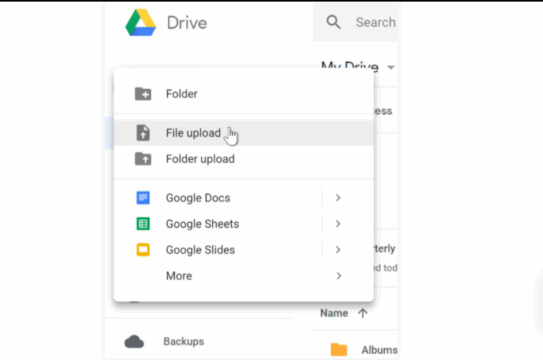
Uploading directly through Google Drive is one of the easiest methods to convert PowerPoint files.
- First, navigate to the browser and open Google Drive.
- Next, tap on New → File upload and select the PPT or PPTX file.
- After the file is uploaded, right click on the file → Open with → Google Slides
Once done, the presentation will open in Slides format. It’s a nice method that helps retain the formatting. Nevertheless, in some cases, the font gets misplaced. The method is prioritized when you want an instant conversion and simple editing.
-
Drag-and-Drop into Google Slides
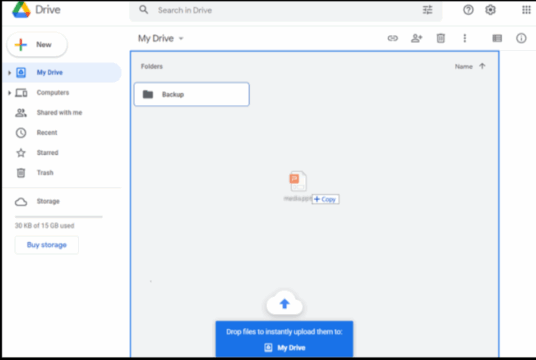
Drag-and-drop is another excellent way for those already in Google Slides. Here is how you can do it.
- Navigate to Google Slides.
- Begin with a new blank presentation.
- Grab the PowerPoint file directly into Windows and drop.
By following this method, the slides will automatically be imported and converted. It is also a very quick way. The best part is that you do not need to open the Drive separately to convert PPT to Google Slides.
-
Import Slides from PowerPoint
If you need some particular slides, then this method will be a better option for you. Here is how it works.
- Go to the Google Slides file.
- Navigate to the file, then import the slides, upload, and then choose your PowerPoint file.
- Select the slides you would like to include. Once done, click “import slides”.
The approach is beneficial for those who want to have complete control over the content and work when combining various presentations—a simple way to facilitate the removal of unnecessary slides.
-
Using Cloud Storage Like TeraBox
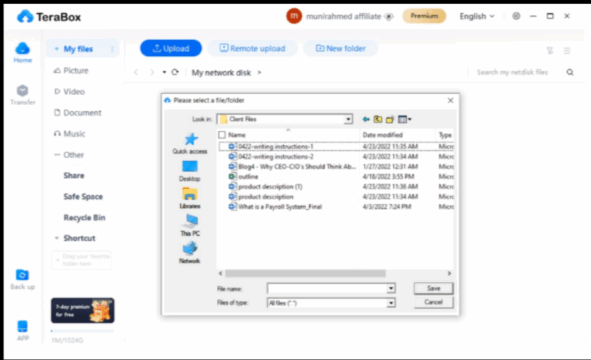
TeraBox is a very important tool that is popular worldwide. Its AI presentation maker streamlines the workflow, making the process more efficient and effective. Here is how it works.
- Navigate to the TeraBox AI presentation maker and upload the PowerPoint file you want.
- To get access, log in through the web or PC.
- Now open or download the file from TeraBox. Once done, import it into Google Slides according to your requirements.
TeraBox is a world-famous tool. It offers several beneficial features, including 1 TB of free storage, which is impressive. Additionally, it assures a reliable backup and works well across various devices. It is an AI-powered tool that also facilitates the work of presentation creation. It utilizes AI and enables you to generate new presentations directly within the platform. With so many amazing features, it stands out among all the cloud solutions, works perfectly for format switching and facilitates teamwork.
How to Fix Common Conversion Issues
If you convert PPT to Google Slides, there might be some problems that you would face. These problems can cause frustration; however, we search through and give you the best solutions. Here are some common issues along with solutions to fix them.
Font Substitutions
- It is hard sometimes for Google Slides to analyze the font included in PowerPoint. Do this to fix it.
- Use Google fonts like Roboto or Open Sans and replace them with the unsupported fonts.
- Utilize the standard fonts of the original PPT.
Misaligned Text or Images
Misaligned text and images ruin the entire presentation. The layout may get misplaced during the import. Here is what you can do to avoid it.
- Use Arrange → Align and Distribute to re-align text boxes and images.
- It is better to focus on a simple and minimalistic design as it lowers the chances of misaligned text and images.
Broken Charts or SmartArt
Charts and SmartArt may not look so good due to the conversion. It can negatively affect the clarity of the presentation. Here is what you can do.
- Simplify the visual elements before you proceed with the conversion.
- Before uploading, convert complex graphics into static images within PowerPoint.
Animation and Transition Loss
In some cases, Google Slides does not support transitions. This can result in a loss of animation and transition. To prevent such situations, review and follow the solution provided below.
- Reapply the animations. For this, navigate to the slide menu and select the transitions.
- For large media files, it’s better to upload them to platforms like Google Drive and add links to your slides instead.
This assures the presentation runs smoothly in Google Slides. Hence, you do not need to spend hours fixing them, and your converted PowerPoint to Google Slides will be free of any issues.
Tips for a Smooth Conversion
Here, we have discussed some important measures to take that assist in smooth transitions.
It is recommended to use the standard fonts supported by Google.
1. Make Simple and Minimalistic Slides
It is best to avoid using detailed and intricate structures and SmartArt. Such a layout causes difficulty in the conversation process, resulting in several problems. It is far better to keep the slides as simple as possible with a clean-cut layout.
2. Back up in TeraBox
Use TeraBox to save both the original and converted files. It assists with super quick access.
It is a smart step to check formatting early. Therefore, once you are done with the conversion, look at the first few slides. This will help you identify whether there is any issue you can solve at the moment.
3. Update Links and Videos
Look after the embedded links and videos to ensure they are functioning correctly after the import.
4. Leverage TeraBox AI
TeraBox offers excellent assistance in converting PPT to Google Slides. So, take help from TeraBox to rebuild slides for fast and efficient results.
The above tips ensure a hassle-free conversion. These help eliminate time wastage and minimize post-conversion editing. Make sure you explore TeraBox to simplify the workflow and enjoy a smooth and safe procedure.
Is Conversion a Must?
Concerned about why conversion is important and whether it is a must? No worries, follow up, we have discussed the pros and cons of the conversion that will give you a better idea of these questions.
PowerPoint Pros
- Assists next-generation animation and innovative transitions.
- Compatible with offline tools.
- Offers custom themes, slide masters, and give complete control over design.
PowerPoint Cons
- It gives a limited number of collaborations if you do not have Office 365.
- Bulky presentations with limited online sharing.
Google Slides Pros
- Real-time collaborations.
- Works across any device with internet access.
- It keeps a record of past versions as it automatically saves your work in the cloud.
Google Slides Cons
- Limited animation.
- There are formatting limitations.
So, the answer to whether conversions are a must is that it varies.
Stick with PowerPoint if you work solo and create advanced visuals. In contrast, those who often work in teams, requiring cloud syncing and sharing, should convert to Google Slides.
Cloud-first teams usually choose Google Slides to get real-time input. The platform stores all files on the cloud, like TeraBox, so that you get the freedom to switch formats based on needs without losing the content. In addition, you can also leverage tools like the TeraBox AI presentation maker, which can reimagine decks entirely with just a single prompt.
Conclusion
In conclusion, learning how to convert PowerPoint to Google Slides and do a killer presentation is a must in the modern world. It benefits team collaborations and helps with access to presentations from anywhere.
There are various ways you can try, such as Google Drive, drag-and-drop, and TeraBox AI presentation maker. Each of them facilitates the conversion process to a great extent.
TeraBox saves and keeps a record of conversion files while providing several other advantages as a cloud tool. Level up your presentation game and try TereBox today to enjoy a smooth and hassle-free workflow.