

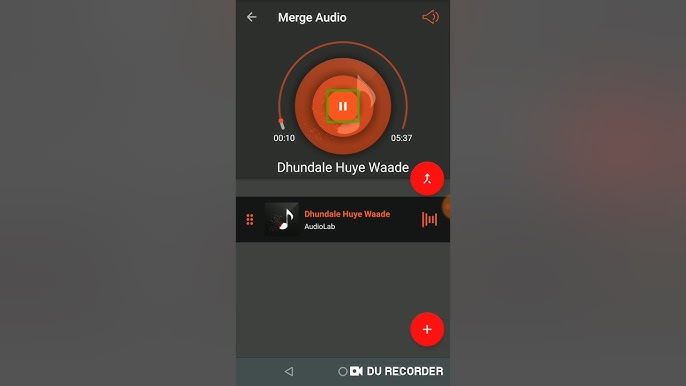
Whether you’re creating a playlist, editing a podcast, or producing a continuous music track, there are times when you need to merge multiple audio files into one. This used to be a task that required desktop editing software, but mobile apps like AudioLab voice editor, now make it possible to combine tracks directly on your Android device. With just a few taps, you can create a single seamless file from separate recordings, saving time and giving you the flexibility to edit anywhere.
Why Merge Audio Files?
Merging audio files has many uses:
- Podcasts and interviews: Combine multiple segments into a single episode.
- Music mixes: Join songs together for continuous playback without gaps.
- Language learning: Merge audio lessons for uninterrupted practice sessions.
- Event recordings: Piece together different parts of a speech, conference, or meeting.
- Audiobooks: Combine chapters into one file for easier listening.
By merging audio, you not only make playback smoother but also reduce the number of files to manage.
Introducing AudioLab
AudioLab is a versatile audio editing app for Android that offers tools for cutting, mixing, noise removal, format conversion, and more. Its Audio Merger feature allows you to join multiple audio files quickly and maintain high sound quality. You don’t need advanced technical skills to use it—AudioLab’s interface is designed for ease of use while still offering professional-grade results.
Supported File Formats
One of AudioLab’s strengths is its wide format support. You can merge files in formats such as MP3, WAV, AAC, FLAC, and others. If your files are in different formats, AudioLab can convert them during the merge process, ensuring compatibility and consistent output.
Step-by-Step Guide to Merging Audio Files in AudioLab
Step 1: Install and Launch AudioLab
Download AudioLab from the Google Play Store and open it. Allow the app to access your device’s storage so it can locate your audio files.
Step 2: Select the Audio Merger Tool
From the main menu, choose the Audio Merger option. This will open the feature specifically designed for combining multiple files into one.
Step 3: Add Your Audio Files
Tap the add button and select the files you want to merge from your phone’s storage. You can add as many as you need, and the app will display them in the order they will be combined.
Step 4: Arrange the Order
If the files are not in the desired sequence, you can drag and drop them to rearrange. This is especially useful for podcasts or music mixes where the order matters.
Step 5: Adjust Settings
Choose the output format for the final merged file. MP3 is a common choice for general use, while WAV is preferred for high-quality, uncompressed audio. You can also set the bitrate and sample rate to control the balance between sound quality and file size.
Step 6: Merge the Files
Once you’ve arranged and set your preferences, tap the merge button. AudioLab will process the files and create a single seamless track. The processing time will depend on the number and length of the files.
Step 7: Save and Share
After the merge is complete, rename the file for easy identification and save it to your preferred folder. You can then play it in any audio player or share it with collaborators.
Tips for a Smooth Merge
- Use files with similar quality: Mixing files with very different bitrates or formats can cause noticeable changes in sound quality.
- Trim before merging: Remove long silences or unnecessary parts beforehand for a cleaner final track.
- Check volume levels: Ensure all files have similar volume so listeners don’t need to adjust during playback.
- Use fade effects: If you want smoother transitions between files, consider adding fade in/out effects in AudioLab before merging.
Benefits of Using AudioLab for Merging Audio
Convenience: Complete the process entirely on your phone without transferring files to a computer.
Speed: The app merges files quickly, even with larger projects.
Format flexibility: Supports multiple file types and converts them automatically if needed.
Extra editing tools: After merging, you can further enhance the track with noise removal, equalisation, or mixing features.
Practical Uses for Different Audiences
- Podcasters: Merge intro, main content, and outro music into one final episode.
- Musicians: Create demo reels by combining multiple song excerpts.
- Educators: Compile course recordings into one file for students.
- Businesses: Merge training audio segments into a single resource for staff.
Final Thoughts
Merging audio files is no longer a task that requires advanced equipment or complicated software. With AudioLab’s Audio Merger feature, you can combine multiple recordings into one seamless track in minutes, all from your Android device. Whether you’re producing a podcast, compiling music, or creating training materials, this tool offers the flexibility, quality, and ease of use that small teams and individual creators need. If you haven’t tried it yet, download AudioLab and experience just how simple mobile audio merging can be.