

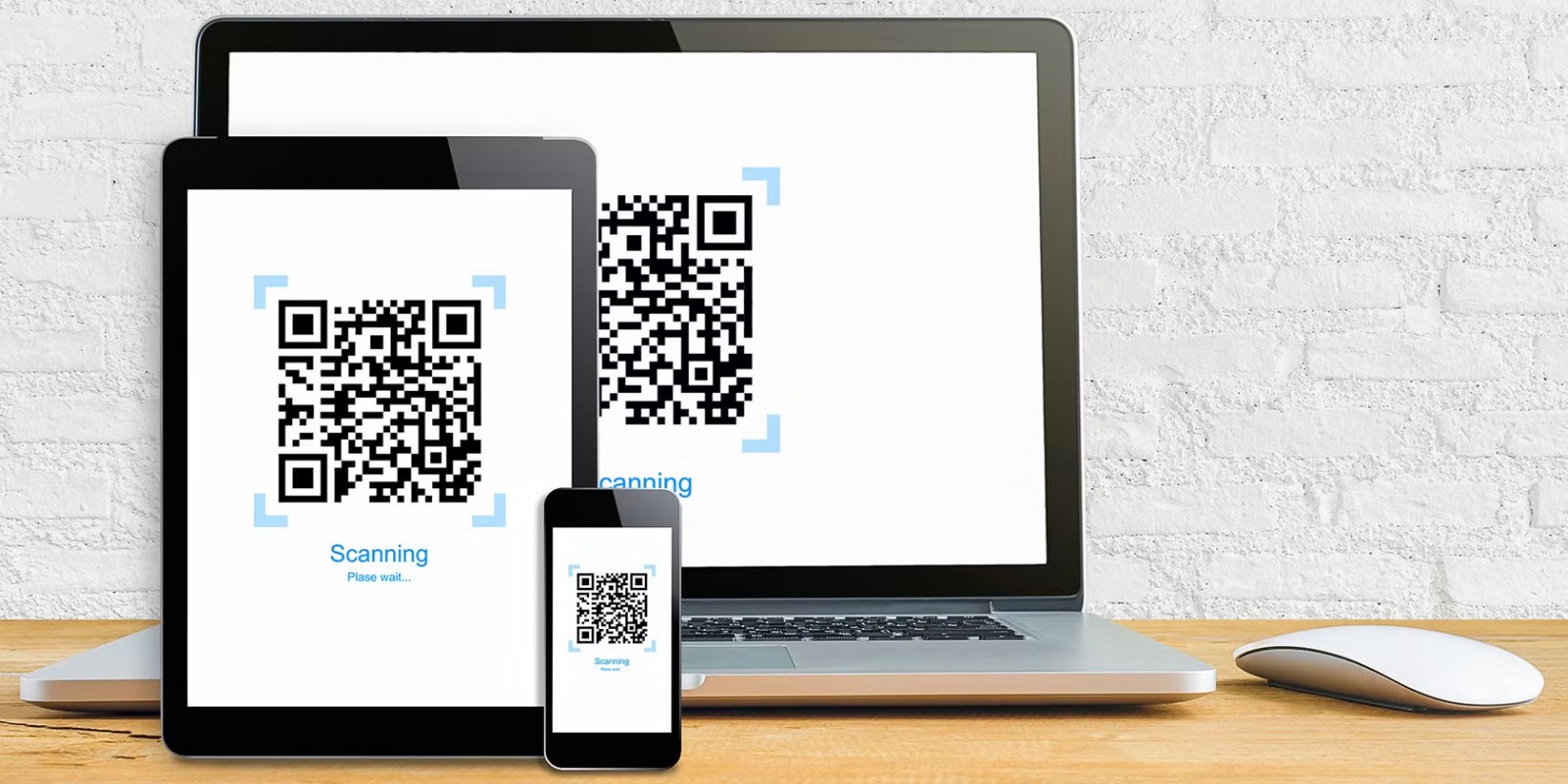
QR codes (Quick Response codes) have become a ubiquitous tool in our digital world. They’re used for various purposes, including marketing, payment systems, accessing websites, and sharing contact information. Initially, QR codes were scanned using smartphones and standalone applications, but with the advancement of web technology, it’s now possible to scan QR codes directly from a web browser. This article will explain how to scan QR codes from a web browser, the tools required, and the various use cases of this convenient method.
Introduction to QR Codes
QR codes are two-dimensional barcodes that can store information like URLs, text, contact details, or Wi-Fi credentials. They are composed of a series of black and white squares, which encode data in a way that is easily readable by a camera or scanner. Due to their ability to store more information than traditional barcodes, QR codes have gained popularity across multiple sectors, including retail, education, healthcare, and even event management.
In the early days, QR code scanning required physical scanners or smartphone apps, but with the growth of web technologies, we now have the ability to scan QR codes directly from the web browser. This eliminates the need for additional apps or devices, offering a seamless experience for users.
Why Scan QR Codes from a Web Browser?
Scanning QR codes through a web browser is an attractive option for several reasons:
- Convenience: You no longer need to download or install a specific application to scan QR codes. Everything can be done directly in your browser, making it accessible across devices like computers, laptops, tablets, and smartphones.
- No Additional Hardware: Since the majority of modern devices are equipped with cameras, you can scan QR codes using your device’s built-in camera and the browser itself without the need for additional peripherals.
- Web Integration: Web-based QR code scanners can be easily integrated with websites and applications, enabling businesses to streamline the process of engaging with customers. For example, businesses can offer instant promotions or discounts when users scan a QR code from a browser.
- Cross-Platform Support: Scanning QR codes through a browser means you can use this feature on any operating system, whether you’re using Windows, macOS, Android, or iOS.
- Security and Privacy: When scanning QR codes via a browser, it’s possible to ensure that the QR code leads to a secure website or service, reducing the risks of scams or malicious links.
How QR Code Scanning Works in a Web Browser
Scanning QR codes from a web browser involves using technologies like JavaScript and the WebRTC API to access a device’s camera. Here’s a basic overview of how it works:
- Accessing the Camera: Modern web browsers support the ability to access a device’s camera through JavaScript. The WebRTC (Web Real-Time Communication) API enables this functionality, allowing browsers to capture live video from a webcam or smartphone camera.
- Capturing the QR Code: The QR code scanning software within the web browser processes the live video feed, identifying the QR code within the frame. This can be achieved using libraries like ZXing, QRScanner, or jsQR, which are open-source JavaScript libraries designed for decoding QR codes.
- Decoding the Information: Once the QR code is detected in the camera feed, the decoding library interprets the QR code’s data (whether it’s a URL, text, or any other information) and presents it to the user.
- Action on Decoded Data: Based on the decoded data, the web browser can take the appropriate action, such as opening a URL, displaying text, or saving contact information. For instance, if the QR code links to a website, the browser can redirect the user to that URL automatically.
- User Interface: Some QR code scanner websites and applications provide a user-friendly interface, where users can click a “Scan” button, after which the browser prompts for camera access and begins scanning the QR code in real time.
Tools and Websites for Scanning QR Codes from a Web Browser
1. Online QR Code Scanners
There are numerous online tools available to scan QR codes directly from a web browser. These tools typically allow users to either upload an image of the QR code or scan it in real-time using their camera. Here are some popular options:
- QR Code Scanner (web-based)
- QR Code Reader
- Google Lens
Browser Extensions
For users who frequently scan QR codes from their browser, extensions can be an excellent choice. Extensions are typically installed directly within the browser and add additional functionality, such as the ability to scan QR codes from images, links, or screenshots without leaving the browser.
Popular browser extensions for scanning QR codes include:
- QR Code Reader (for Chrome and Firefox): This extension allows users to scan QR codes directly from their browser window by clicking the extension icon. It works by scanning QR codes that are visible on the webpage or in images.
- QRCodeScanner (for Google Chrome): This extension enables users to scan QR codes embedded in web pages and images. It provides a quick and easy way to access the contents of a QR code.
3. Native Web Browser Features
Several browsers now include native QR code scanning features. Google Chrome, for example, has a built-in QR code reader that allows users to scan QR codes from any webpage or search result. This feature is accessed through the right-click menu or the address bar in the browser.
- Chrome: In the Chrome browser, users can right-click on a QR code image and select “Search Google for this image.” If the image contains a QR code, Chrome will detect it and provide an option to scan and access the contents of the QR code.
- Microsoft Edge: Edge has similar functionality, enabling users to scan QR codes via the browser’s inbuilt QR code scanner. Users can click on the address bar and select the option to scan a QR code.
Steps to Scan QR Codes from a Web Browser
1. Using Online Tools
Here’s a simple guide to scanning QR codes using a web browser and online QR code scanners:
- Open a web-based QR code scanner like WebQR.
- Click on the “Scan” button or grant the website permission to access your device’s camera.
- Hold your device’s camera over the QR code so that it appears clearly within the scanner window.
- The website will automatically detect the QR code, decode the information, and display the result, such as opening a URL or showing a message.
2. Using Browser Extensions
Here’s how to scan QR codes using a browser extension:
- Install a QR code scanning extension from the browser’s extension store (such as QR Code Reader for Chrome).
- Click on the extension icon in the toolbar to activate the scanner.
- Point your camera at the QR code or select a QR code image from the web page.
- The extension will decode the QR code and display the relevant information (e.g., URL, text).
3. Using Native Browser Features
For users who don’t want to install third-party tools, some browsers, like Chrome and Microsoft Edge, offer built-in QR code scanning features:
- In Google Chrome, right-click on a QR code on a webpage and select “Search Google for this image.”
- If the image contains a QR code, Chrome will automatically detect it and show an option to scan it.
- After scanning, Chrome will offer to open the URL or display the decoded information.
Security Concerns When Scanning QR Codes from a Web Browser
While scanning QR codes from a browser is convenient, there are certain security risks associated with it:
- Malicious QR Codes: QR codes can sometimes lead to phishing websites or malicious downloads. Always ensure that the website you are redirected to is legitimate and secure.
- Data Privacy: If the QR code leads to a website that collects personal data, be cautious. Avoid scanning QR codes from untrusted sources.
- HTTPS Encryption: Ensure that any URL in the QR code uses HTTPS to secure communication between your browser and the destination site.
Conclusion
Scanning QR codes from a web browser is an innovative and convenient way to access the information stored in QR codes without needing to download any additional apps. With the advancement of browser features and web technologies like WebRTC and JavaScript, QR code scanning has become more accessible, seamless, and secure. Whether you’re using a web-based tool, browser extension, or a native browser feature, you can easily scan QR codes directly from your web browser, making it easier than ever to engage with digital content.