
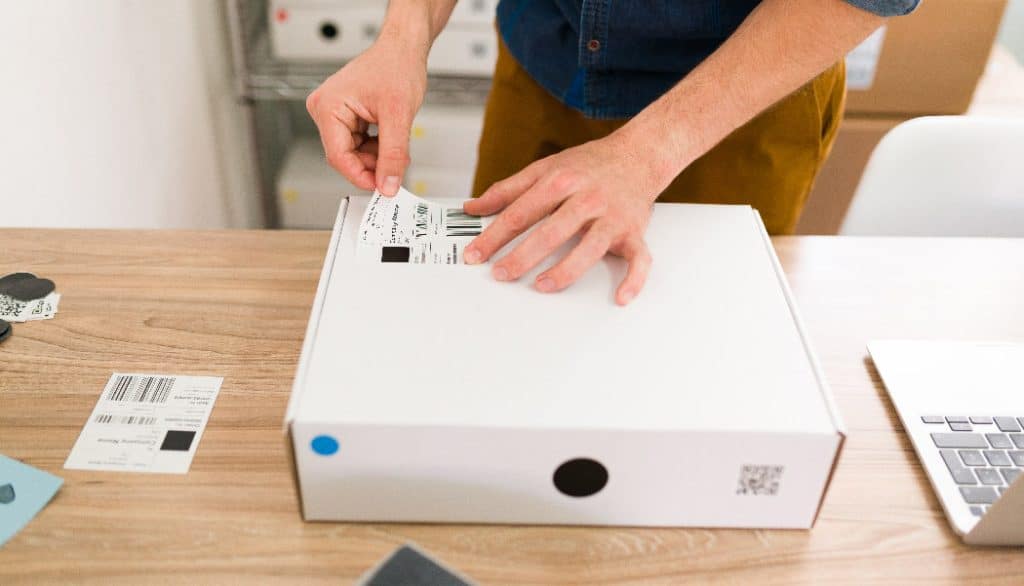
Printing your own address labels at home is one of the simplest ways to save time, stay organized, and give your mail a polished, professional appearance. Whether you’re shipping online orders, sending holiday cards, or organizing personal files, having the right tools makes all the difference.
In this article, we’ll walk you through everything you need to know to print address labels easily and efficiently from the comfort of your home. We’ll cover printers, labels, software options, and best practices. Plus, we’ll recommend three top label options: Brother DK-2205, Brother DK-1202, and DYMO 30252.
Why Print Address Labels at Home?
1. Convenience
Forget handwriting addresses or running to the post office. With a home setup, you can print hundreds of labels in minutes.
2. Cost-Effective
Printing at home costs significantly less over time than buying custom-printed labels or paying for handwriting services.
3. Customizable
Add logos, icons, or personal touches to reflect your brand or personality.
4. Professional Look
Printed labels are cleaner, easier to read, and give your mail a more trustworthy, polished feel.
What You Need to Print Address Labels at Home
To set up your home label printing station, you’ll need:
1. A Thermal Label Printer
These printers are compact, ink-free, and perfect for high-volume label printing.
Recommended Models:
- Brother QL series (e.g., QL-700, QL-800)
- DYMO LabelWriter series (e.g., 450, 550)
2. Compatible Labels
Choose the right size and adhesive for your labeling needs. (More on this below.)
3. Label Design Software
- P-touch Editor for Brother printers
- DYMO Label Software for DYMO users
- Microsoft Word or Google Docs for basic layout
- Online templates for free customization
4. Computer or Mobile Device
Connect your printer via USB, WiFi, or Bluetooth.
Best Labels for Home Address Printing
Brother DK-2205 (Continuous Length Label Tape)
Size: 2.4″ wide, cut to any length
Best For:
- Flexible address sizes
- Return address and shipping labels
- Custom layouts
Why We Recommend It:
- Cut labels to fit long names or international addresses
- Ideal for branding and graphics alongside text
Brother DK-1202 (Pre-Sized Address Label)
Size: 1.1″ x 3.5″
Best For:
- Standard envelope addresses
- High-speed batch printing
Why We Recommend It:
- Consistent layout and sizing
- Great for return address or recipient address printing
DYMO 30252 (Pre-Sized Standard Address Label)
Size: 1-1/8″ x 3-1/2″
Best For:
- Simple, clear addressing
- DYMO Label Writer users
Why We Recommend It:
- Widely compatible with DYMO printers
- Great for both personal and business use
How to Print Your Address Labels Step-by-Step
- Install Your Printer Driver and Software
- Download software from Brother or DYMO websites
- Connect your printer via USB or WiFi
- Choose Your Label Format
- Use pre-built templates or start from scratch
- Select correct label size (e.g., 30252 or DK-1202)
- Design Your Labels
- Type in your address list manually or import from Excel/CSV
- Adjust font size, add images or logos
- Preview and Print
- Print a test label to check spacing and alignment
- Start batch printing when ready
- Apply to Envelopes or Packages
- Peel and stick — it’s that simple!
Tips for Getting the Best Results
- Use high-quality compatible labels (like those from Betckey)
- Avoid glossy finishes that may smear or affect scanability
- Keep designs clean and uncluttered for readability
- Store unused labels in a cool, dry place to preserve adhesive
- Run a test print before large batches to avoid waste
Use Cases for Home-Printed Address Labels
1. eCommerce Shipping
If you run a small online business, printing your own labels can streamline fulfillment and reduce errors.
2. Holiday Cards and Invitations
Add a personal, professional touch to holiday mailings or party invites.
3. Return Address Labels
Speed up personal or business correspondence by keeping return labels ready.
4. Storage and Organization
Label boxes, folders, or home inventory with your address and content info.
Why Quality Labels Matter
Even with a good printer and design, the label itself plays a big role. High-quality address labels:
- Stick securely
- Print clearly
- Don’t jam your printer
- Resist fading
This is why we recommend reliable label options like:
- Brother DK-2205 – for custom sizing
- Brother DK-1202 – for pre-sized speed
- DYMO 30252 – for everyday standard use
All three are available in permanent, removable, and even color versions from brands like Betckey, giving you more flexibility.
Final Thoughts: Simplify Your Mailing Routine
Printing your own address labels at home is surprisingly easy, cost-effective, and fun. With just a thermal printer, a roll of labels, and a bit of setup, you can create professional-quality labels in minutes.
Whether you’re sending out products, letters, or party invites, investing in the right tools — especially reliable labels like Brother DK-2205, DK-1202, and DYMO 30252 — will elevate your entire mailing process.
FAQs
1. Can I print address labels without a thermal printer?
Yes, you can use inkjet or laser printers with label sheets (like Avery), but thermal printers are faster, cleaner, and more cost-efficient for regular use.taba squishies
2. What’s the difference between permanent and removable labels?
Permanent labels stick firmly and are difficult to remove. Removable labels stick well but can be peeled off without residue — ideal for temporary or reusable items.
3. How do I know what size label to use?
Choose based on your envelope or packaging size. DK-1202 and DYMO 30252 are great for standard envelopes, while DK-2205 offers more custom flexibility.