

With mobile games growing in popularity, more players are seeking a better experience by playing their favourite titles on larger screens with more powerful hardware. Android emulators have emerged as the ideal solution, and among them, LDPlayer stands out for its performance, stability, and broad compatibility with today’s hottest mobile games.
This article will guide you through using LDPlayer 雷电模拟器 to play mobile games on your PC. From installation and setup to performance tuning, we’ll help you create a smooth and immersive gaming environment.
Why Play Mobile Games on PC
While mobile devices offer convenience, they also have drawbacks, such as small screens, limited battery life, and touch controls that lack precision. Playing games on a PC provides better visuals, more accurate controls, and stable performance—especially beneficial for action games, shooters, and MOBAs.
In addition, emulators help overcome device compatibility issues, allowing games to run on a broader range of platforms. LDPlayer offers these benefits and more, giving players control over their gameplay, with support for keyboard mapping, multiple instances, and customizable settings.
Introduction to LDPlayer and Its Key Benefits
LDPlayer is a free Android emulator that offers high performance and stability. Built on an Android kernel, it supports a wide range of games and apps. Features like multi-instance management, macro recording, and key mapping make it a go-to choice for many mobile gamers.
Games like Genshin Impact, PUBG Mobile, Honour of Kings, Arknights, and Subway Surfers run smoothly on LDPlayer. Whether you’re into casual puzzle games or high-intensity strategy titles, this emulator can meet your needs with consistent compatibility and performance.
Simple Installation for Quick Start
Installing LDPlayer is straightforward. Visit the official LDPlayer website to download the installer compatible with your system. It supports Windows 7 and later. Mac users can also run it through virtualization solutions.
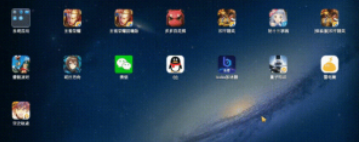
After installation, launch LDPlayer 雷电下载, and you’ll see an interface similar to an Android tablet. You can either use the built-in app store or drag and drop APK files directly into the emulator to install games.
Before you begin, it’s a good idea to ensure your computer meets the minimum hardware requirements. Updating your graphics driver and enabling virtualization technology (VT) from your BIOS will significantly improve performance.
Installing and Launching Games in LDPlayer
There are multiple ways to install games. You can search and download games from LDPlayer’s built-in store, or log in to the Google Play Store with your account to access the global version of popular titles. For apps not available through official channels, you can drag their APK files into the emulator window to perform a manual installation.
Once installed, the game icons will appear on the home screen. Click to launch. LDPlayer will automatically adapt to the game’s device requirements. Some games may require additional resources to be downloaded, which usually takes just a few minutes.
Optimise Controls with Key Mapping
Compared to touchscreen controls, using a keyboard and mouse offers much better precision. LDPlayer offers powerful key mapping tools that enable you to customize input settings, simulate swipe gestures, control camera angles, and even set up rapid-fire buttons.
To access this feature, launch a game and click the key mapping icon from the side menu. You can assign keys for movement, jumping, shooting, aiming, and other actions. For example, in PUBG Mobile, you might assign WASD for movement, Shift for running, and Space for jumping.
You can save multiple control schemes for different games, offering a personalized setup that improves reaction time and gameplay effectiveness.
Multitask with Multiple Instances
LDPlayer allows users to run multiple emulator instances at once. This is especially useful for managing multiple game accounts, farming resources, or playing different games at the same time. With the built-in Multi-Instance Manager, you can create, clone, and organize several instances efficiently.
This feature is ideal for idle RPGS, strategy games, and games that require account switching. It maximizes in-game productivity and gives users more flexibility in how they engage with games.
Performance Tuning for a Smooth Experience
To achieve the best performance, LDPlayer offers settings that let you customize CPU, RAM, resolution, and frame rate allocations. You can find these options in the settings menu.
For 3d games, a higher configuration (e.g., 4 cores with 4096MB of RAM) is recommended. Enabling high frame rate mode and adjusting resolution can reduce lag and improve visual quality. If your system supports it, turning on GPU rendering or setting the emulator to use a dedicated graphics card will further enhance performance.
You can also turn off non-essential features, such as auto-sync or recommendations, to conserve system resources and reduce background load.
Common Issues and How to Fix Them
Occasionally, users may encounter black screens, crashes, or games failing to start. These are usually due to outdated graphics drivers or older emulator versions. Updating both the emulator and your drivers often resolves these issues.
If you experience input lag or stuttering, enabling VT, closing unused programs, or lowering the emulator’s resolution and frame rate can help. Players’ website and forums offer extensive support and troubleshooting guides for more advanced problems.
A New Way to Enjoy Mobile Gaming
LDPlayer opens up a new realm of possibilities for mobile gamers. With better graphics, customizable controls and multitasking features, it transforms your PC into a powerful mobile gaming hub. Whether you’re a competitive player aiming for victory or a casual gamer seeking a relaxed experience, LDPlayer gives you the tools to play your way.
By using the correct settings and getting familiar with its features, you can fully enjoy popular mobile games on your computer. In 2025 and beyond, mobile gaming is no longer limited to your phone; it’s part of a broader, cross-platform entertainment experience.