

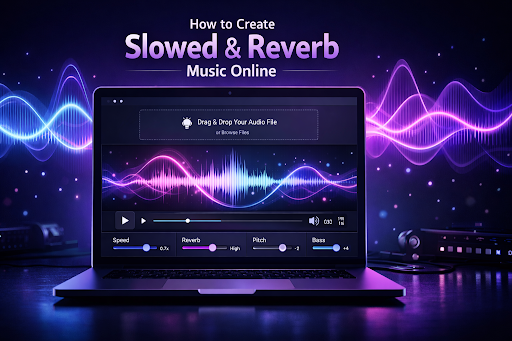
Slowed and reverb music has become one of the most popular audio styles for listeners, creators, and editors who want a more atmospheric and immersive sound. Whether you want to make a chill remix, create a moody background track, or give a song a dreamy vibe, you can now create slowed and reverb music online without installing heavy software.
In this step-by-step guide, you will learn exactly how to turn a normal audio file into a slowed and reverb version using a browser-based tool. If you want a simple way to do it, try Slowed & Reverb Studio, a web-based audio effects tool that lets you upload audio, adjust effect sliders, preview the result, and download your edited file as a high-quality MP3.
What Is Slowed and Reverb Music?
Slowed and reverb music is a style of audio editing where a track is made slightly slower and layered with reverb to create a spacious, emotional, and atmospheric sound. Many creators also adjust pitch and bass to make the final output feel deeper, warmer, or more cinematic.
This style is widely used for:
- chill playlists
- background music
- mood edits
- social media videos
- YouTube audio uploads
- personal listening versions of favorite songs
The appeal of slowed and reverb edits comes from the way they transform familiar tracks into something more immersive and emotionally rich.
Why Create Slowed and Reverb Music Online?
Using an online slowed and reverb maker is one of the easiest ways to edit music quickly. Instead of downloading desktop software or learning complex audio programs, you can do everything directly in your browser.
Main benefits of using an online slowed and reverb tool:
- no complicated software setup
- easy drag-and-drop workflow
- quick audio preview before final export
- support for multiple file formats
- simple controls for speed, reverb, pitch, and bass
- fast download of processed audio
For beginners, browser-based editing is much easier. For advanced users, it saves time when they want to make quick edits without opening a full audio workstation.
What You Need Before You Start
Before creating slowed and reverb music online, make sure you have:
- an audio file you want to edit
- a supported format such as MP3, WAV, M4A, FLAC, OGG, or AAC
- a stable internet connection
- a browser on desktop or mobile
If you want to process more than one track, you can also upload multiple files at once.
Step-by-Step: How to Create Slowed and Reverb Music Online
Step 1: Open the Slowed & Reverb Studio Tool
Start by opening Slowed & Reverb Studio in your browser.
This online tool is designed to make slowed and reverb editing simple:
upload → tweak sliders → preview → apply → download
You do not need advanced audio editing knowledge to use it.
Step 2: Upload Your Audio File
The first step is to upload the song or audio track you want to edit.
You can upload files in two ways:
Option 1: Drag and Drop
Drag your audio file from your computer and drop it into the upload area.
Option 2: Select Files
Click the Select Files button and choose one or multiple audio files from your device.
Supported audio formats:
- MP3
- WAV
- M4A
- FLAC
- OGG
- AAC
Once uploaded, your files appear in a list with useful details such as file name and file size. You can also remove individual files if needed.
This is especially useful if you want to test different tracks or process a batch of audio files with the same settings.
Step 3: Adjust the Slowed and Reverb Settings
After uploading your file, go to the Audio Effects Studio section.
This is where you can customize the sound using four main controls:
1. Speed Control
The speed slider changes how fast or slow the audio plays.
- UI range: 50% to 200%
- default value: 100%
To create a classic slowed and reverb sound, reduce the speed below 100%. A slower speed often makes the track sound more emotional and atmospheric.
2. Reverb Level
The reverb slider adds echo and space to the audio.
- range: 0% to 100%
- default value: 0%
A moderate reverb level usually works best for clean, ambient edits. Too much reverb can make the sound muddy, so it is usually smart to increase it gradually.
3. Pitch Shift
The pitch slider raises or lowers the pitch of the track.
- range: -12 to +12
- default value: 0
Lowering pitch can create a darker and deeper sound, while raising pitch can create a more stylized effect.
4. Bass Boost
The bass slider increases low-end frequencies.
- range: 0% to 100%
- default value: 0%
Bass boost can make your slowed and reverb version sound fuller and more powerful, especially for tracks with mellow drums or deep vocals.
As you move the sliders, the values update in real time, making it easy to fine-tune your audio settings.
Step 4: Preview the Effect Before Processing
One of the best features of Slowed & Reverb Studio is the preview function.
After uploading at least one file, the Preview Effects button becomes available.
How preview works:
- the tool processes the first uploaded file using your current settings
- it automatically starts playback in the browser
- you can listen and decide whether the sound needs more adjustment
If needed, click Stop Preview to end playback. Preview also stops automatically once the audio finishes.
This preview step is very important because it helps you test your slowed and reverb settings before applying them to all uploaded files.
Step 5: Apply Effects to Your Audio Files
Once you are happy with the preview, click Apply Effects.
The tool processes every uploaded file using your chosen settings. This makes it easy to edit one file or multiple files at once.
After processing, the results section shows:
- processed file name
- file size
- duration
- format
- quality
- effect badges showing which settings were used
- download option for each file
This keeps your edited tracks organized and easy to identify.
Step 6: Download the Final Audio
After processing is complete, you can download your new slowed and reverb audio files.
Download options include:
- download a single processed file
- download multiple processed files as a ZIP
The output is exported as high-quality MP3 at 320kbps, which is a strong advantage for users who want a clean and polished result.
If you are editing several tracks at once, ZIP download saves time and keeps everything in one package.
Best Settings for Slowed and Reverb Music
There is no single perfect preset because every song is different, but here are some practical starting points.
Recommended beginner settings:
- Speed: 75% to 90%
- Reverb: 15% to 35%
- Pitch: -1 to -3
- Bass: 10% to 30%
These settings often create a balanced slowed and reverb effect without over-processing the track.
If you want a deeper and darker sound:
- lower the speed a bit more
- reduce pitch slightly
- increase bass carefully
- keep reverb moderate
If you want a cleaner ambient sound:
- use a smaller speed reduction
- add light reverb
- leave pitch unchanged or only reduce it slightly
The best workflow is to preview, adjust, preview again, and then apply the final settings.
Tips for Getting Better Slowed and Reverb Results
To make your final audio sound smoother and more polished, follow these tips:
Start with moderate changes
Extreme settings can make the track sound distorted or muddy. Begin with light adjustments.
Use preview before exporting
Previewing helps you hear whether the song still feels balanced.
Lower speed gradually
A small speed reduction often sounds better than making the track too slow.
Keep reverb under control
Too much reverb can reduce vocal clarity and bury important details.
Adjust pitch only when needed
A subtle pitch drop can enhance the slowed effect, but too much can sound unnatural.
Add bass carefully
Bass boost can improve depth, but too much may overpower the mix.
Common Mistakes to Avoid
When making slowed and reverb music online, avoid these common issues:
Using too much reverb
This can make the track lose clarity.
Slowing the track too aggressively
If the speed drops too much, the song may feel stretched and dull.
Ignoring preview
Previewing helps prevent poor final exports.
Over-boosting bass
Too much bass can make the audio muddy, especially on smaller speakers.
Is It Better Than Using Desktop Software?
That depends on your needs.
Desktop audio editors offer advanced control, but they are not always necessary for basic slowed and reverb editing. If your goal is to create slowed and reverb music quickly, an online tool is often the better option.
Online tool advantages:
- faster workflow
- easier to use
- no installation needed
- accessible from almost any device
- ideal for quick edits and previews
For many users, Slowed & Reverb Studio provides the right balance of simplicity and useful control.
Frequently Asked Questions
Can I create slowed and reverb music online for free?
Yes, you can create slowed and reverb music online using a browser-based tool without needing advanced software.
What file formats are supported?
Supported formats include MP3, WAV, M4A, FLAC, OGG, and AAC.
Can I upload multiple audio files at once?
Yes. The tool supports multi-file upload, so you can process more than one file in the same session.
Can I preview the slowed and reverb effect before downloading?
Yes. The preview feature processes the first uploaded file with your current settings and plays it in the browser.
What output format do I get?
Processed audio is exported as high-quality MP3 at 320kbps.
Can I change more than just speed and reverb?
Yes. In addition to speed and reverb, you can also adjust pitch and bass.
Final Thoughts
If you want to create slowed and reverb music online, the easiest method is to use a browser-based audio effects tool that lets you upload files, adjust sliders, preview the sound, and download the finished result.
Slowed & Reverb Studio makes this process simple by combining multi-file upload, live preview, adjustable audio controls, and high-quality MP3 export in one clean workflow.
Whether you are editing music for personal listening, social content, or creative experimentation, this tool gives you a practical and beginner-friendly way to make slowed and reverb songs online.
🔹 Explore more powerful file conversion and online utilities at AllFileTools –
🔹 For technical support, digital solutions, and expert services, visit LetDigitalFly IT Services –
🔹 Discover additional career and productivity resources at Resume Slip Builder –