

When do you need a disk format tool?
Formatting plays an important role in creating the file system on a partition. It allows the operating system to store and retrieve data smoothly. This structured arrangement is called the file system. It has become an important part in managing and accessing data through various storage media efficiently, especially the hard drive. Users usually ask for a reliable disk format tool in these situations:
- Data deletion:
The main reason behind formatting a hard drive is to erase all data. Whether preparing to transfer the hard drive to another system or turning it into a second drive. Formatting is an effective and often preferred method of getting rid of personal information.
- Startup problems:
If the system fails to boot due to complex registry faults, choosing to format could be a practical solution. Formatting will remove all files and errors so the computer can effectively return to its initial condition.
- Operating system changes:
Whether you are updating or replacing an aging computer, formatting is the top choice. It removes prior system settings and files, leaving a clean slate free of outdated remains and dangerous infections from the previous operating system.
- File system changes:
The versatility of hard drives extends to compatibility with a variety of file systems. When considering switches in the file system on a hard drive, whether internal or external, formatting is critical for smooth integration.
What is the easy and safe disk format tool for Windows?
When it comes to reliable disk formatting tools for Windows 7, 8, 10, and 11, AOMEI Partition Assistant is an excellent choice. This partition software taps into the disk potential and manages partitions efficiently, making formatting disks a simple and safe task. Aside from overcoming the limitations of the native Windows formatting tool, this professional tool has a range of features:
- Easily format FAT32 hard drives larger than 32GB.
- Seamlessly format internal and external hard drives to the exFAT file system with no effort.
- Format the hard drive as a Linux file system like Ext4/Ext3/Ext2 smoothly within the Windows environment.
- Successfully completed forced formatting on RAW or read-only volumes, overcoming some tricky challenges.
What’s more, AOMEI Partition Assistant does more than just format hard disks. It works as a comprehensive Windows disk management tool, allowing users to resize/move, delete, and clone partitions. At the same time, it is also a free PC cleaner with features like moving files from one drive to another and deleting large or unwanted files.
Note: It is important to remember that formatting a disk requires complete erasure of all data. So before using disk formatting utility, it is recommended to back up important files to protect the integrity of your data.
How to format hard drive in Windows 11/10/8/7 easily?
After knowing how powerful AOMEI Partition Assistant is, let’s have a look at the simple steps to format a hard drive using this disk formatter in Windows 11, 10, 8, and 7.
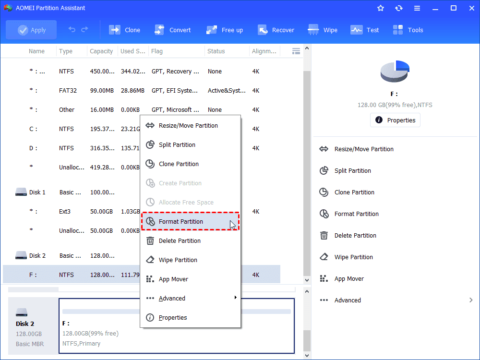
Step 1. Download the hard drive formatting tool on your Windows computer. After downloading, proceed with the installation and launch the software. Right-click on the specific partition of the target disk and select “Format Partition”.
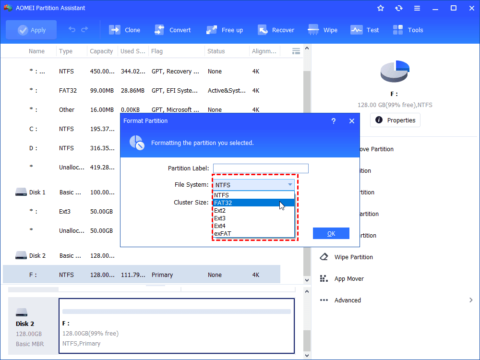
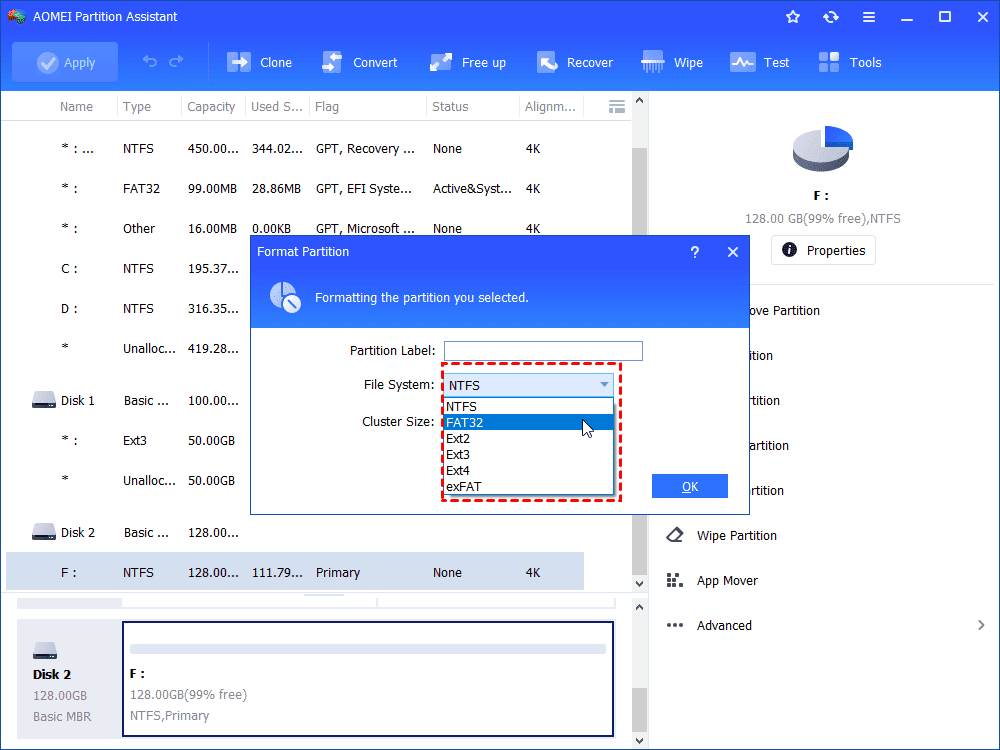
Step 2. Customize the format to your liking by setting partition labels, cluster size and file system. After customizing to your liking, click “OK”.
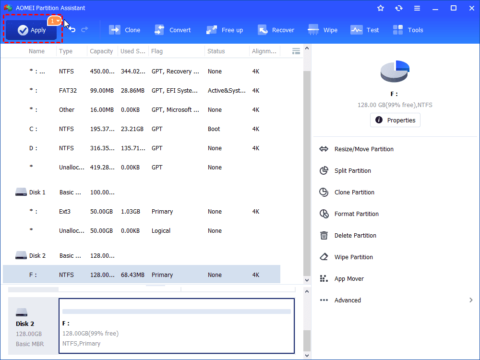
Step 3. Click “Apply” in the main interface to advance the formatting process and initiate hard drive conversion according to the settings you configured.
Conclusion
Whether you want to change file systems, erase drive data, or fix some problems, you can format the hard drive to make it. A powerful disk format tool like AOMEI Partition Assistant can help you finish the formatting process quickly and efficiently. Since 2010, AOMEI Technology has been committed to keeping global data safe, helping over 60 million users worldwide. If you need to have the partition formatted, don’t hesitate to download AOMEI software and enjoy its remarkable features.