

“How to recover permanently deleted photos” is one of the most frequent queries typed into search engines by frantic users who have just watched years of precious memories vanish in a split second. Whether you are an amateur photographer who accidentally cleared an SD card, a digital creator managing heavy video assets, or simply a parent who emptied the computer’s Recycle Bin too quickly, the sinking feeling of digital loss is universally painful. Fortunately, modern storage technology operates in a way that leaves a lingering window of opportunity.
To turn this terrifying mishap into a successful rescue mission, you must understand how data storage works and deploy the right utilities immediately. This comprehensive guide details the precise steps to reverse digital disasters on various storage media and platforms.
The Digital Anatomy of “Permanent Deletion”
To understand how to recover permanently deleted photos, you must first understand what happens when you press the delete button. When a file system deletes a picture from a hard drive, an external USB flash drive, or a camera memory card, it does not instantly overwrite the entire sector with zeros. Instead, the operating system performs a quick clerical change: it removes the file pointer from the directory index and marks that specific storage space as “free” or “available” for future allocation. Consequently, the original raw photo data remains fully present but completely invisible to standard file explorers. This phase represents the golden hour for data preservation. However, if you continue using the device to take new pictures, download software, or stream content, the operating system will inevitably write new data over those available blocks, destroying the remnants of your lost images. Therefore, the absolute first rule of data recovery is to cease using the affected drive or device immediately.How to Recover Permanently Deleted Google Photos and Cloud Backups
Many users rely heavily on cloud-based ecosystems to safeguard their mobile memories. When a catastrophic deletion occurs on a smartphone or tablet, checking your synchronized cloud accounts should always be your first line of defense.Leveraging the Cloud Trash System
If you are wondering how to recover permanently deleted google photos, the solution often lies within the cloud provider’s safety buffer. Most prominent cloud platforms implement a temporary retention policy, holding deleted files for an extended period before erasing them permanently from their servers.Google Photos
When you delete an item, Google moves it to the Trash / Bin.- Backed-up items: Retained for 60 days.
- Unbacked-up items: Retained locally for 30 days.
To restore: Open Google Photos➡Library➡Trash➡select your photos➡tap Restore
Apple iCloud
iOS and macOS users can find deleted media in the Recently Deleted album within the native Photos app. Apple holds these items for 30 days before permanent deletion, allowing you to easily select and recover them.When Cloud Retention Expires
Unfortunately, if you exceed these time limits or explicitly choose to “Empty Trash” within your cloud storage panel, the files are purged from the server networks. In these instances, your cloud platform can no longer assist you. You must pivot your strategy toward local storage media, seeking out physical devices that once cached or transferred those files, such as internal computer drives, external HDDs, or USB storage.Transitioning to Local Storage Recovery
When cloud systems fail or when the data loss happens entirely offline—such as a corrupted camera storage card or a formatted external drive—you require an advanced, computer-based approach to scan the physical sectors of the drive.Introducing PandaOffice Drecov Data Recovery Software
When built-in system tools and cloud buffers fall short, a specialized utility like PandaOffice Drecov Data Recovery Software bridges the gap between catastrophic data loss and successful restoration. This versatile software addresses a broad spectrum of data emergencies, providing a non-destructive, comprehensive scanning methodology that digs deep into the physical foundations of your storage media:- High-Velocity Scanning Engine: Built with optimized scanning algorithms, the application can analyze storage drives up to three times faster than traditional recovery tools, minimizing the anxiety of long waiting periods.
- Unrivaled Success Rate: In supported recovery environments, the software achieves a recovery success rate of up to 98.8%, effectively reconstructing file pieces from formatted drives, lost partitions, or system crashes.
- Read-Only Safety Protocol: To guarantee absolute data safety, the tool operates entirely in a read-only configuration. It carefully parses the damaged sectors without altering, moving, or overwriting a single byte of your existing files.
- Expansive Format and Device Support: The software effortlessly recognizes over 3,000 distinct file types—including standardized image formats like JPEG and PNG, alongside advanced camera RAW files. Furthermore, it is fully compatible with more than 2,000 device categories, making it easy to recover permanently deleted photos from PC hard drives, external solid-state drives, mechanical hard drives, USB flash drives, and camera memory cards.
Step-by-Step Guide: Recover Permanently Deleted Photos with Drecov
To achieve optimal results when attempting to recover permanently deleted photos, following a structured, safe workflow is vital. The application streamlines this sophisticated engineering process into an intuitive, three-step desktop interface that requires zero background in computer forensics.Step 1: Device Connection and Target Selection
Launch the program to view a clearly organized dashboard displaying all available internal partitions and connected external peripherals. Select the exact drive location that hosted your deleted pictures to begin the process.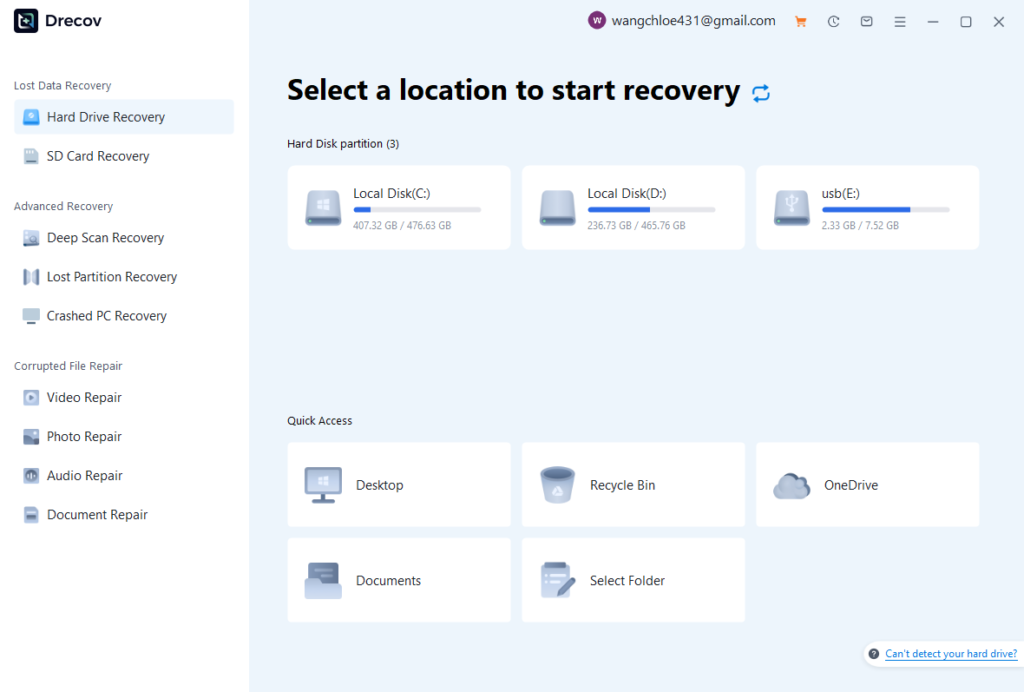
Step 2: Executing the Multi-Layered Scan
Once you select the target drive, choose your preferred scanning depth. For files that were deleted only moments ago, a Quick Scan will swiftly skim the directory records. As the scan progresses, you can take advantage of the dynamic filtering options to narrow down the results by file type, size, or creation date, or even pause and resume the process at your convenience.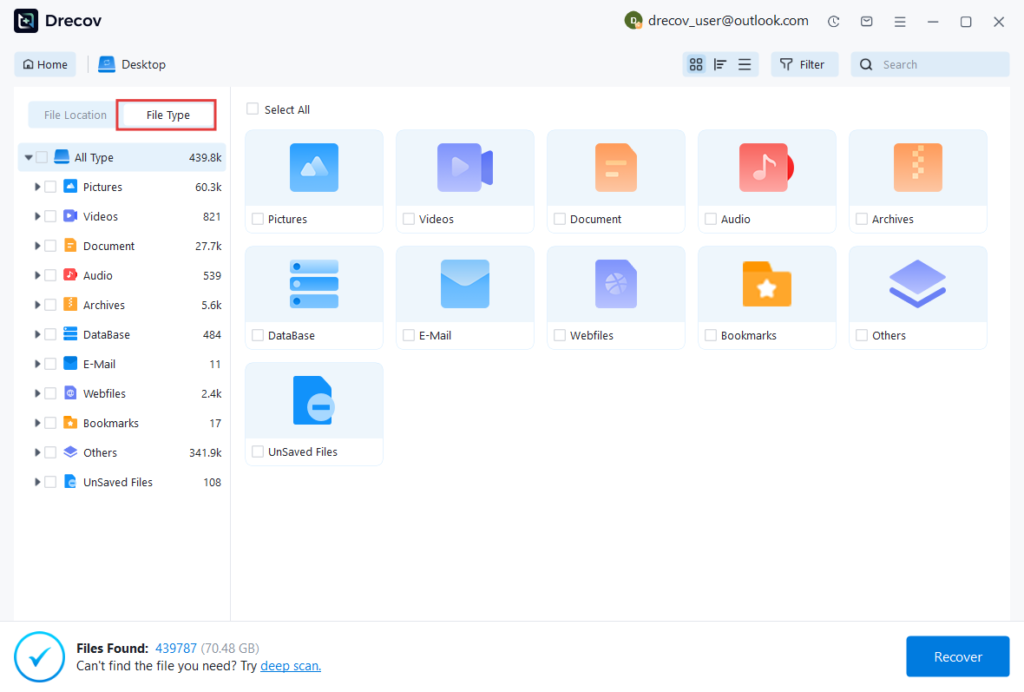
Step 3: File Preview and Secure Preservation
After the scan concludes, the software populates an organized preview pane. Here, you can click on individual image thumbnails to verify their visual quality and file integrity before initiating the actual recovery process. Check the boxes next to the permanently deleted photos you wish to retrieve and click the “Recover” button. Finally, choose a destination folder located on a completely different physical drive to save the restored pictures.Essential Best Practices for Future Data Protection
While utilizing advanced software offers a reliable safety net, establishing robust digital habits will protect your valuable media from future data loss events.- Implement the 3-2-1 Backup Strategy: Maintain three separate copies of your essential photo collections. Store two copies on different local physical media (such as your internal PC hard drive and a dedicated external hard drive) and keep one copy offsite in a secure cloud repository.
- Exercise Caution with the “Shift + Delete” Command: This Windows keyboard shortcut bypasses the Recycle Bin entirely, immediately designating the file space as available. Take an extra moment to confirm your file selection before executing permanent erasure commands.
- Safely Eject Media Devices: Always use the “Safely Remove Hardware and Eject Media” taskbar function before pulling out an SD card or USB flash drive from your computer. Sudden disconnection during active read/write cycles can corrupt file allocation tables, rendering entire photo libraries inaccessible.