

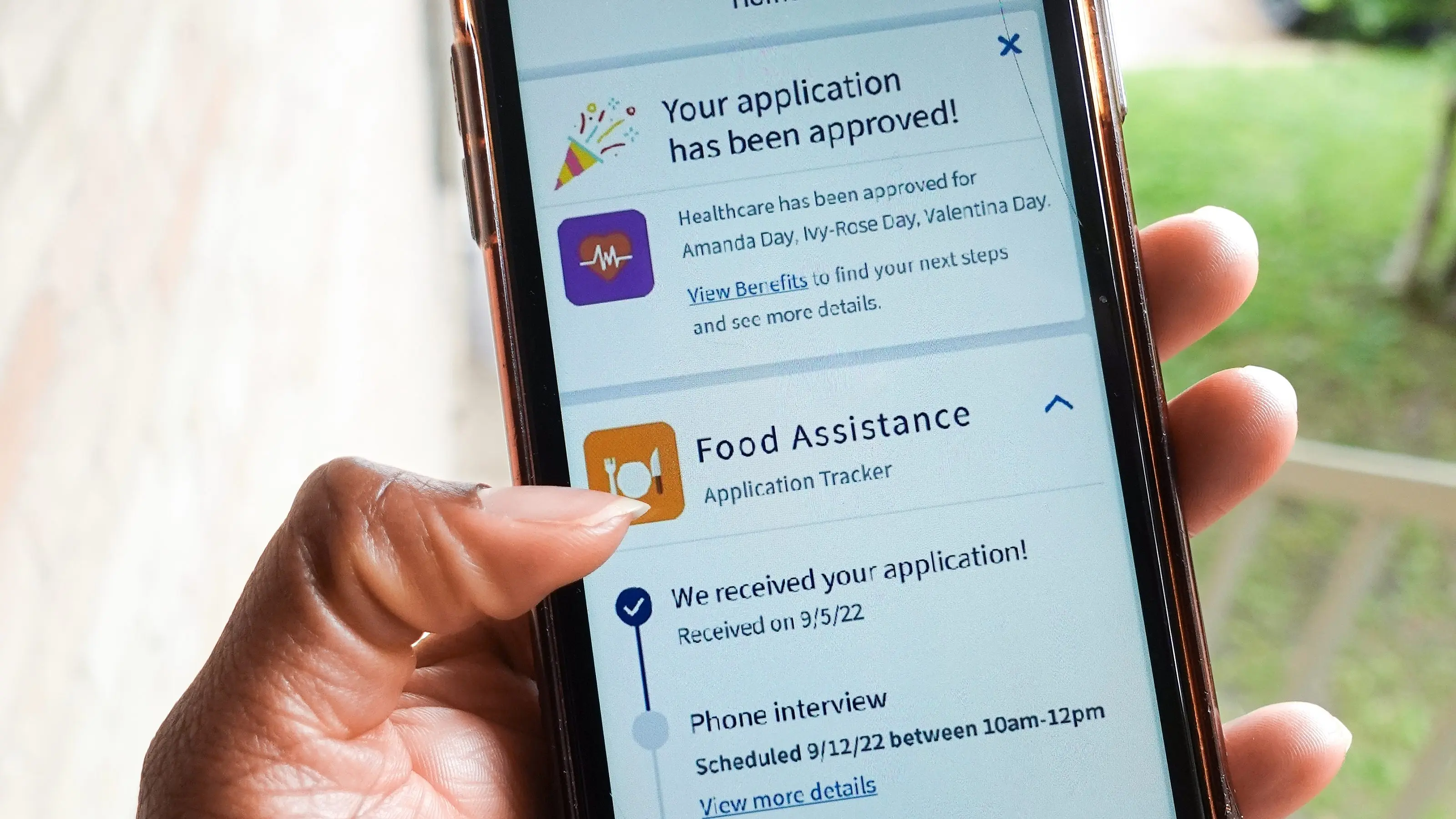
If you live in Michigan and need help with food, healthcare, or financial assistance, MI Bridges is the official online portal run by the Michigan Department of Health and Human Services (MDHHS). Whether you’re applying for SNAP benefits, Medicaid, or cash assistance, MI Bridges makes the entire process available online — no office visits required.
This step-by-step guide walks you through everything you need to know about MI Bridges, from creating your account to checking your benefit status.
What Is MI Bridges?
MI Bridges is Michigan’s free, state-run benefits management portal at mibridges. It allows Michigan residents to:
- Apply for government assistance programs including SNAP (food stamps), Medicaid, and cash assistance
- Check the status of their applications in real time
- Upload required documents directly from their phone or computer
- View SNAP payment schedules and benefit amounts
- Report life changes that may affect their eligibility
The platform is available 24/7, which means you don’t have to take time off work or visit a local MDHHS office to manage your benefits. Everything is handled digitally, saving you both time and travel costs.
Who Can Use MI Bridges?
MI Bridges is designed for Michigan residents who meet income and household requirements for state and federal assistance programs. You can use MI Bridges if you are:
- A Michigan resident aged 18 or older
- Applying on behalf of your household
- A caregiver or authorized representative managing benefits for someone else
Even if you’re unsure whether you qualify, MI Bridges has a Prescreening Tool that estimates your eligibility before you submit a full application.
Step 1: Create Your MI Bridges Account
Before you can apply for benefits, you need to register for a free account. Here’s how:
- Go to MIBridges Login
- Click “Create Account” on the homepage
- Enter your full name, date of birth, and a valid email address
- Create a username and a strong password
- Set up your security questions for account recovery
- Verify your email address by clicking the link sent to your inbox
Important: MI Bridges uses MiLogin, Michigan’s two-step identity verification system. After entering your username and password, you’ll receive a one-time verification code via email or text message. Enter this code to complete the login. This extra step protects your personal information and benefit data.
Step 2: Complete Your Benefits Application
Once you’re logged in, you can begin your application:
- Click “MiBridges Apply for Benefits“ from your dashboard
- Select the programs you want to apply for — SNAP, Medicaid, cash assistance, or all three
- Fill out each section carefully, including household size, income, employment status, and expenses like rent and utilities
- Review your application before submitting
- Click “Submit Application”
After submission, you’ll receive a confirmation number. Save this — you’ll need it if you want to follow up on your case.
Step 3: Upload Your Required Documents
MDHHS typically requires supporting documents to verify your eligibility. These may include:
- Proof of identity — driver’s license, state ID, or passport
- Proof of Michigan residency — utility bill or lease agreement
- Proof of income — recent pay stubs or employer letter
- Social Security numbers for all household members
To upload documents directly through MI Bridges:
- Log in to your account
- Go to “My Documents”
- Click “Upload Document”
- Choose the document type from the dropdown menu
- Take a photo or select a file from your device and upload
iPhone users note: If your phone saves photos in HEIC format, MDHHS’s system may not accept them. Convert your images to JPEG before uploading to avoid rejection errors.
Step 4: Check Your Application Status
After submitting, you don’t have to wonder what’s happening. MI Bridges keeps you updated:
- Log in to your account
- Click “Check My Status” on the dashboard
- View whether your application is pending, approved, or needs additional information
If MDHHS needs more documents or has questions, they will send a notice directly to your MI Bridges inbox. Check your account regularly to avoid delays in processing.
Step 5: View Your SNAP Payment Schedule
Once approved for SNAP benefits, your Electronic Benefit Transfer (EBT) card is loaded on a specific date each month based on the last digit of your case number. You can view your exact payment schedule by logging into MI Bridges and navigating to “My Benefits.”
For 2026, SNAP payments in Michigan are distributed between the 3rd and 21st of each month depending on your case number. Logging into MI Bridges is the fastest way to confirm your personal payment date without calling MDHHS.
Troubleshooting Common MI Bridges Problems
Account locked? After five incorrect login attempts, your account is locked for 30 minutes. Wait the full period before trying again, or use the “Forgot Password” link to reset your credentials.
Page not loading? Try clearing your browser cache or switching to Google Chrome. MI Bridges works best on updated desktop browsers.
Documents rejected? Make sure file sizes are under 10MB and are saved in PDF, JPG, or PNG format only.
Final Thoughts
MI Bridges is one of the most convenient tools available to Michigan residents who need government assistance. From applying for SNAP and Medicaid to uploading documents and tracking payments, the entire process is streamlined into one easy-to-use portal.
If you haven’t created your account yet, visit mibridges.us.com today and take the first step toward accessing the benefits you’re entitled to.